INTRODUCTION:
In the financial year 2025, Goods and Service Tax (GST) Department taking great initiative for simplification of registration and compliance. On 1st July 2017, CBIC introduce the GST with simple aim to avoid cascading effect of tax. Earlier under VAT taxpayer are paying tax-on-tax which ultimately result into increase in cost of material. By using biometric Aadhar Authorization GST registration can be completed.
Who should obtain the GST registration?
- Individuals registered under the Pre-GST law (i.e., Excise, VAT, Service Tax, etc.)
- Businesses with turnover above the threshold limit of Rs.40 lakh or Rs.20 lakh or Rs.10 lakh, as the case may be
- Persons making interstate supplies
- Casual taxable person / Non-Resident taxable person
- Agents of a supplier & Input service distributor
- Those paying tax under the reverse charge mechanism (RCM)
- A person who supplies via an e-commerce aggregator (other than supplies specified under CGST Section 9(5))
- Every e-commerce aggregator under CGST Section 52
- Persons who are required to pay tax under the CGST Section 9(5)
- Government departments/offices of Government required to deduct TDS under the CGST Section 51
- Person supplying online information and database access or retrieval services from a place outside India to a person in India, other than a registered taxable person
- Every person supplying online money gaming from a place outside India to a person in India

Benefit of registration:
- GST eliminates the cascading effect of tax
- Higher threshold limit for registration
- simple and easy online processor
- Special treatment for E-commerce operator
- Improve efficiency in logistics
- Lessor number of compliance
- Unorganized sector is regulated
Threshold limit for Registration:
In practically, business entities are goes for GST registration when their Aggregate turnover exceed threshold limit.
As per sec 22 of CGST Act 2017, a person who engage in taxable supply whether in a state or more, aggregate turnover exceeds threshold limit i.e. ₹20L or ₹40L or ₹10L as the case may be.
Usually, people said that threshold limit for GST registration is ₹20L but this limit varies on the basis of nature of business and state of business.
| States | Exclusively engage in supply of Goods | Exclusively engage in supply of Services |
|---|---|---|
| Tripura, Nagaland, Mizoram, Manipur | ₹10L | ₹10L |
| Puducherry Uttarakhand Meghalaya, Arunachal Pradesh, Telangana, Sikkim | ₹20L | ₹20L |
| Rest of India | ₹40L | ₹20L |
Step-by-step processor :
https://services.gst.gov.in/services/quicklinks/registration
Step 1: Go to the GST Portal
Access the GST Portal ->/ > Services -> Registration > New Registration option

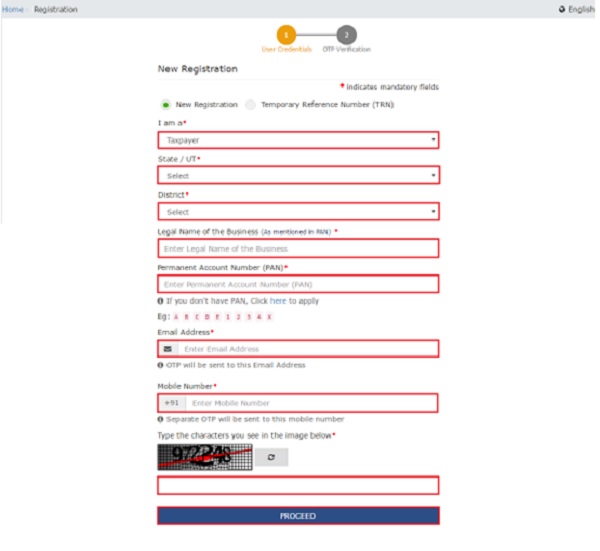
Step 2: Generate a TRN by Completing OTP Validation
The new GST registration page is displayed. Select the New Registration option. If the GST registration application remains incomplete, the applicant shall continue filling the application using TRN number.
- Select the Taxpayer type from the options provided.
- Choose the state as per the requirement.
- Enter the legal name of the business/entity, as mentioned in the PAN database. As the portal verifies the PAN automatically, the applicant should provide details as mentioned in the card.
- In the Permanent Account Number (PAN) field, enter PAN of the business or PAN of the Proprietor. GST registration is linked to PAN.
Hence, in the case of a company or LLP, enter the PAN of the company or LLP.
- Provide the email address of the Primary Authorized Signatory. (Will be verified in next step)
- Click the PROCEED button.
Step 3: OTP Verification & TRN Generation
On submission of the above information, the OTP Verification page is displayed. OTP will be valid only for 10 minutes. Hence, enter the two separate OTP sent to validate the email and mobile number.
- In the Mobile Number OTP field, enter the OTP.
- In the Email OTP field, enter the OTP.
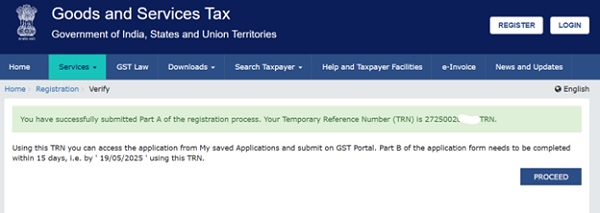
Step 4: TRN Generated
On successfully completing OTP verification, a TRN will be generated. TRN will now be used to complete and submit the GST registration application.
Step 5: Log in with TRN
Upon receiving TRN, the applicant shall begin the process of GST registration. In the Temporary Reference Number (TRN) field on the GST Portal, enter the TRN generated and enter the captcha text as shown on the screen. Complete the OTP verification on mobile and email.
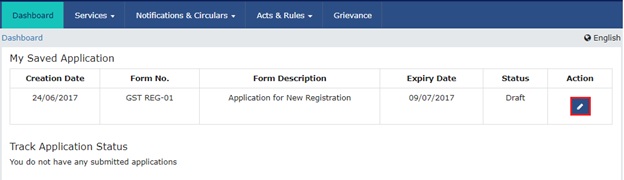
GST Registration – Step 4 Click on the icon marked in red to start the process of GST registration.
Step 6: Submit Business Information
Various information must be submitted to navigate how to do GST registration properly. In the first tab, business details must be submitted.
- Enter the trade name of the business.
- Constitution of the Business
- Enter the District and Sector
- In the Commissionerate Code
- opt for the Composition Scheme, if necessary
- Input the date of commencement of business.
- Select the Date on which liability to register arises. This is the day the business crossed the aggregate turnover threshold for GST registration. Taxpayers are required to file the application for new GST registration within 30 days from the date on which the liability to register arises.
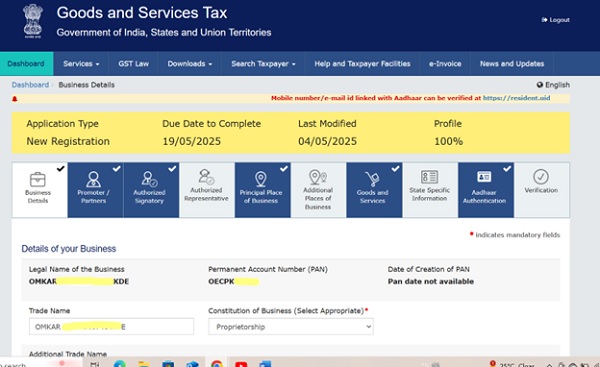
GST Registration – Business Information
Step 7: Submit Promoter Information
In the next tab, provide promoters and directors information. In case of proprietorship, the proprietors’ information must be submitted. Details of up to 10 Promoters or Partners can be submitted in a GST registration application. The following details must be submitted for the promoters:
- Personal details of the stakeholder like name, date of birth, address, mobile number, email address and gender.
- Designation of the promoter.
- DIN of the Promoter, only for the following types of applicants:
- Private Limited Company
- Public Limited Company
- Public Sector Undertaking
- Unlimited Company
- Foreign Company registered in India
- Details of citizenship
- PAN & Aadhaar
- Residential address
In case the applicant provides Aadhaar, the applicant can use Aadhaar e-sign for filing GST returns instead of a digital signature.
GST Registration – Promoter Information
Step 8: Submit Authorized Signatory Information
An authorized signatory is a person nominated by the promoters of the company. The nominated person shall hold responsibility for filing GST returns of the company. Further, the person shall also maintain the necessary compliance of the company. The authorized signatory will have full access to the GST Portal. The person shall undertake a wide range of transactions on behalf of the promoters.
Step 9: Principal Place of Business
In this section of GST registration procedure, the applicant shall provide the details of the principal place of business. The Principal Place of Business acts as the primary location within the State where the taxpayer operates the business. It generally addresses the books of accounts and records. Hence, in the case of a company or LLP, the principal place of business shall be the registered office. For the principal place of business enter the following:
- Address of the principal place of business.
- Official contact such as Email address, telephone number (with STD Code)
- Nature of possession of the premises.
If the principal place of business located in SEZ or the applicant acts as SEZ developer, necessary documents/certificates issued by Government of India are required to be uploaded by choosing ‘Others’ value in Nature of possession of premises drop-down and upload the document. In this section, upload documents to provide proof of ownership or occupancy of the property as follows:
- Own premises – Any document in support of the ownership of the premises like Latest Property Tax Receipt or Municipal Khata copy or copy of Electricity Bill.
- Rented or Leased premises – A copy of the valid Rent / Lease Agreement with any document in support of the ownership of the premises of the Lessor like Latest Property Tax Receipt or Municipal Khata copy or copy of Electricity Bill.
- Premises not covered above – A copy of the Consent Letter with any document in support of the ownership of the premises of the Consenter like Municipal Khata copy or Electricity Bill copy. For shared properties also, the same documents may be uploaded.
GST Registration – Place of Business
Click here to find HSN code and SAC code.
GST Registration – Goods & Services Supplied
Step 12: Details of Bank Account
In this section, enter the number of bank accounts held by the applicant. If there are 5 accounts, enter 5. Then provide details of the bank account like account number, IFSC code and type of account. Finally, upload a copy of the bank statement or passbook in the place provided.
GST Registration – Bank Account
Step 13: Verification of Application
In this step, verify the details submitted in the application before submission. Once verification is complete, select the verification checkbox. In the Name of Authorized Signatory drop-down list, select the name of the authorized signatory. Enter the place where the form is filled. Finally, digitally sign the application using Digital Signature Certificate (DSC)/ E-Signature or EVC. Digitally signing using DSC is mandatory in case of LLP and Companies.
Step 14: ARN Generated
On signing the application, the success message is displayed. The acknowledgement shall be received in the registered e-mail address and mobile phone number. Application Reference Number (ARN) receipt is sent to the e-mail address and mobile phone number. Using the GST ARN Number, the status of the application can be tracked. These 14 steps process can help you with how to do GST registration.