Candidates for the Company Secretary Executive Entrance Test (CSEET) must download and install the Secure Examination Browser (SEB) to take the exam. The process involves three main steps. First, candidates must log in using their CSEET Registration Number and Date of Birth at the official download link. They should ensure their pop-up blocker is disabled before proceeding to the download. The second step is Installation: once the ICSI_SEBInstaller-1.21.exe file is downloaded, the candidate must double-click it. During this process, the system’s anti-virus or Windows Defender may issue a warning, which the candidate is advised to override by selecting “Run anyway” and completing the guided setup. The third step, Run Time, involves double-clicking the “SEB” shortcut icon created on the desktop. It is essential to ensure that the camera and microphone are functioning correctly and that the Internet connection is stable before launching the application. Upon launching, the SEB checks for updates, and the candidate can then enter their provided login credentials and sign in to the examination. Candidates are instructed not to uninstall the SEB until the examination is complete.
Institute of Company Secretaries of India
Secure Browser Download Process
1.Click the below Link.
https://tinyurl.com/ujeby6hx
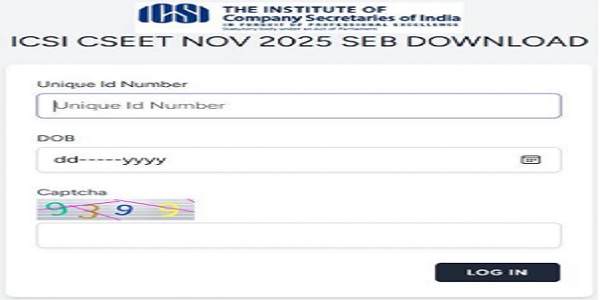
2. Enter the CSEET Registration Number and DOB and Click on LOG IN Button
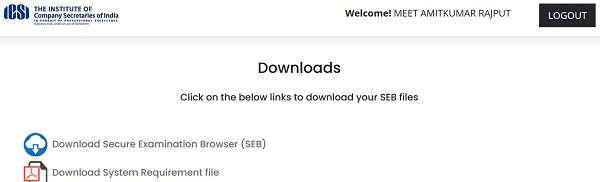
3. Click on Download Secure Examination Browser (SEB).
NOTE: Remove pop up blocker before starting download and Installation of Safe Exam Browser
Step 1: Download
Click to download the Download Secure Examination Browser (SEB) onto your Computer from the above form or from the link provided to you in your email and SMS. Click on Run anyway.

- During download, the anti-virus in your system may prompt you to re-confirm download, as it is an exe file.
- Do NOT worry, it is very safe to download and the run the exe file.
- This exe file is needed only for the exam and not for anything else.
- On completion of the exam, you may go the Control Panel and uninstall the same.
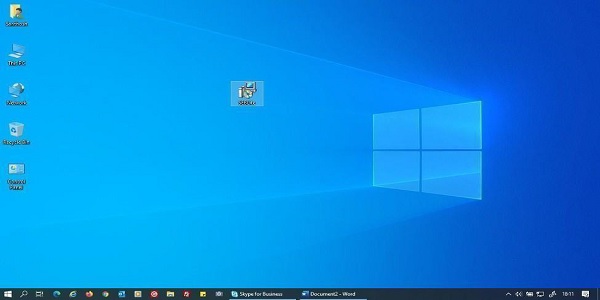
Step 2: Installation – Double click on “ICSI_SEBInstaller-1.21.exe” to start the installation.
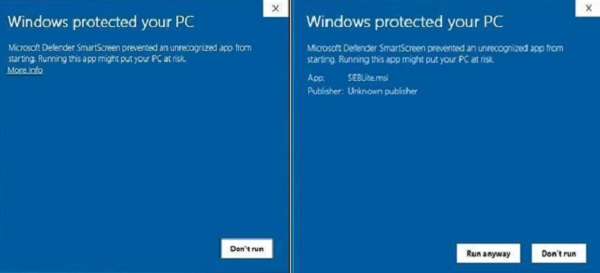
You will get the following pop-up window that will say “Windows protected your PC”
Click on “More Info” to know more about
- Click on “Run Anyway” to initiate the installation process
Click on “Next >” to continue
Click on “Close” to complete the Setup
Important : Internet Connection should be stable.

Step 3: RUN Time
You will be able see two shortcut icons on desktop
- SEB
- SEB Repair tool
Please double click on “SEB” shortcut Icon.

Based on your Windows settings you may / may not get the below mentioned popup message. Click “Yes” to continue.
Note : Please do not uninstall SEB until your examination is completed.
Once Clicked on “SEB” Icon.

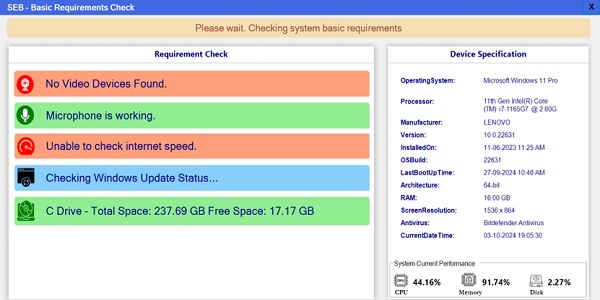
From the above, SEB is checking for any update from Server.
Important Note:
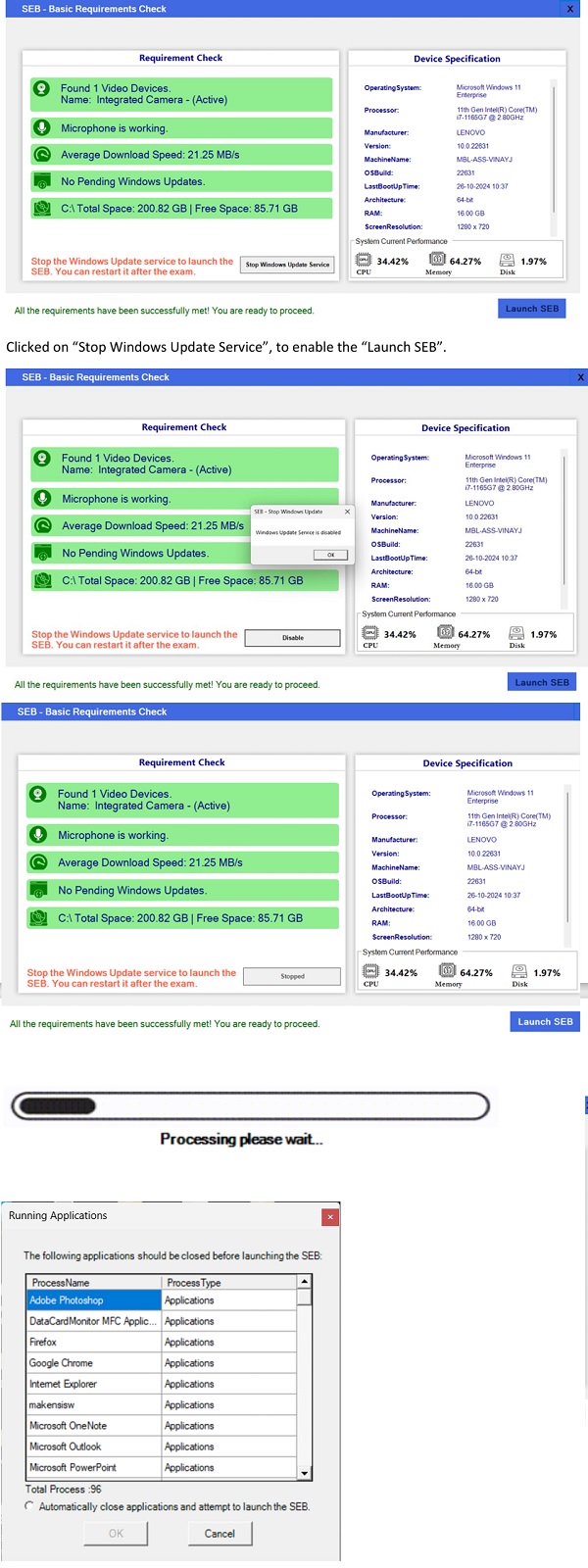
– Please ensure that Camera and Microphone to be worked properly to launch the SEB.
– Internet connection should be stable.
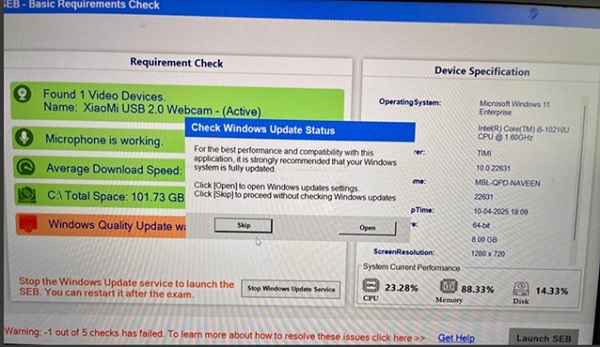
We can skip or update the windows from the above image.
–
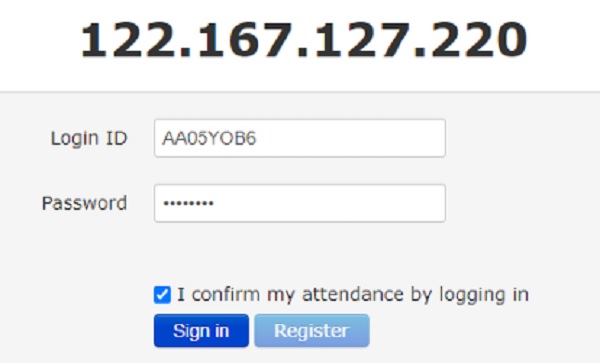
Enter Login Credentials, Confirm Attendance and Sign In
Password will be alphanumeric and this will be sent via SMS or email to all the candidates.