
Summary: The Income Tax Department, Central Board of Direct Taxes, explains the Annual Information Statement (AIS) and Taxpayer Information Summary (TIS). AIS provides a comprehensive view of a taxpayer’s financial information received from multiple sources, including interest, dividend, securities and mutual fund transactions and foreign remittance information, while TIS presents category-wise aggregated information. AIS is available through the e-filing portal, mobile app and offline AIS Utility, with 59 information categories live from FY 2020-21 onwards. Taxpayers can provide transaction-level feedback through options including correct, not fully correct, relating to another PAN/year, duplicate, denied and customized feedback. Feedback or the information source’s response is considered in TIS, which is shared for pre-filling of ITRs after data-quality checks. The material also explains access through the e-filing portal, feedback submission and history, offline utility and the “AIS for Taxpayer” mobile application. The Department states that reviewing AIS, correcting errors and ensuring true and correct returns helps facilitate accurate pre-filling and tax administration. Relevant TaxGuru coverage includes Accessing Taxpayer Information Summary (TIS) Online and FAQs on Annual Information System (AIS) & Taxpayer Information Summary (TIS).
Income Tax Department
Central Board of Direct Taxes
AIS & TIS
What is AIS/TIS?
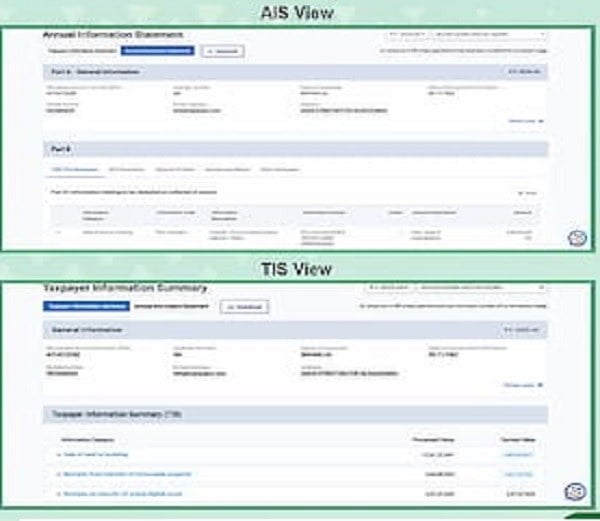
- AIS is comprehensive view of financial information for a taxpayer.
- AIS is populated based on the data received from multiple information sources.
- TIS is a category wise aggregated information summary for a taxpayer.
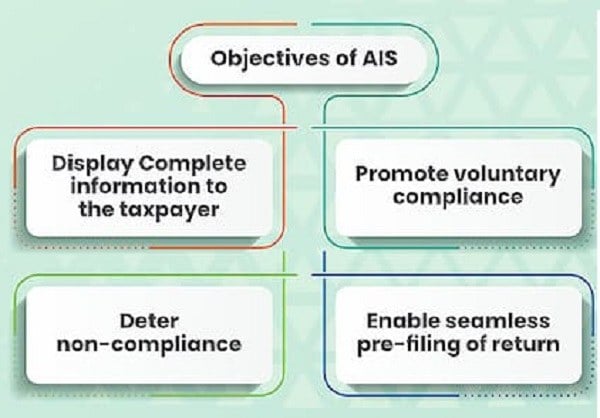
Features of AIS
- Inclusion of multiple categories of transactions undertaken by the taxpayer (interest, dividend, securities transactions, mutual fund transactions, foreign remittance information etc.)
- Taxpayer can submit online feedback on the information displayed in AIS
- Taxpayer can download information available in AIS in multiple formats (PDF, JSON & CSV)
Functionalities available in AIS
- AIS can be accessed online through AIS portal, AIS mobile app & in offline mode through AIS Utility
- Dedicated portal to view AIS for taxpayers. AIS is live with 59 information categories from financial year 2020-21 onwards.
- Offline AIS utility to view and capture feedback useful for bulk information.
- Integrated mobile app (for both Android & iOS) to view the AIS information with the provision to provide feedback on transaction level.
- Functionality to provide transaction level feedback in AIS is available (Scroll down to know the feedback options available in AIS)
- AIS information after considering the taxpayer’s feedback or source’s response on taxpayer’s feedback is aggregated in TIS which is shared with e-Filing for pre-filing of ITR’s for taxpayer’s ease.
The taxpayer’s feedback on select categories of information is communicated to the information source for confirmation. The taxpayer can monitor the status of the information confirmation and view the response provided by the information source on the AIS portal.
Key components of AIS portal
There are multiple tabs available on AIS portal. A brief description of each of the tab is provided below:
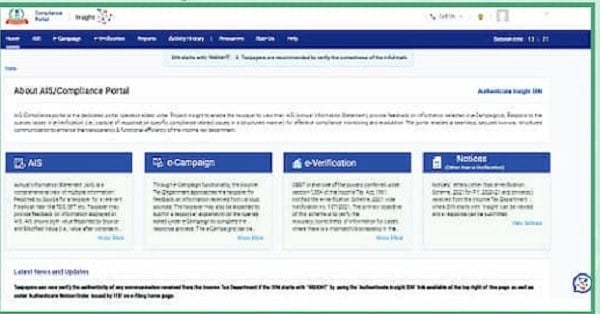
- Home: Provides a comprehensive view of the different functionalities available on AIS portal
- AIS: Facility to view Taxpayer Information Summary (TIS) and Annual Information Statement (AIS) is provided under this tab
- E-Campaign: Facility to view the e-campaigns issued to the taxpayer is provided under this tab
- E-Verification: Facility to view the notices/letters issued to the taxpayer under e-Verification Scheme, 2021 is provided under this tab Reports – Facility to view the consolidated summary of the taxes paid in a particular A.Y.
- Activity History: Facility to view the log of the activities performed on AIS portal, download acknowledgment is provided under this tab
- Resources: Facility to download the different Training Material(s), User manual(s) & AIS Utility is provided under this tab
- Rate Us: Facility is provided to the users to provide their views and suggestions based on their experience with the Portal under this tab
- Help: Facility is provided to access common FAQ’s, Contact Us – or Raise/View Ticket Status in case of any issue/escalations under this tab
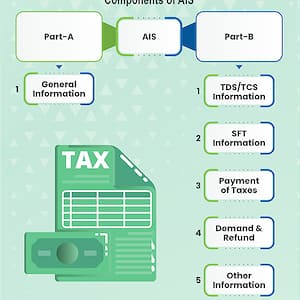
Components of AIS
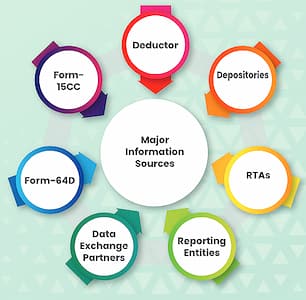
Information sources for AIS
Feedback options available in AIS
- Information is correct
- Information is not fully correct
- Information relates to other PAN/Year
- Information is duplicate / included in other information
- Information is denied
- Customized Feedback (based on Information category)
Steps to view AIS
A) Accessing AIS through e-Filing portal
1. Visit the e-filing portal by using the URL https://www.incometax.gov.in/.
2. On top-right of the homepage, click on “Login” button.
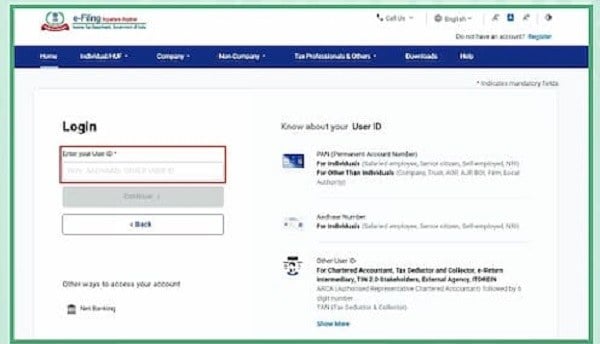
3. Enter user ID and click on “Continue”
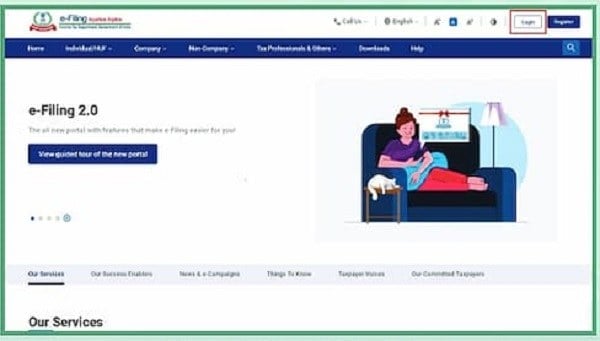
3. Enter user ID and click on “Continue”
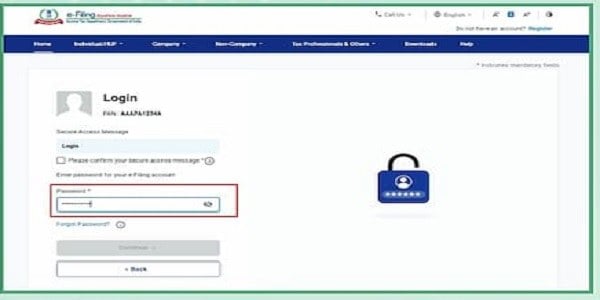
4. Fill in the password and click on “Continue” to navigate to e-filing portal homepage.
Note: If the user is not already registered, then registration must be completed first by clicking on the “Register” button available on e-filing portal and then providing relevant details. After successful registration, login step can be performed on the e-filing portal.
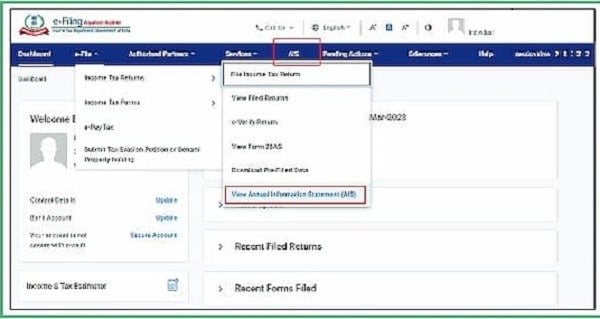
5. Click on “View Annual Information Statement (AIS)” under “e-File” “Income tax Returns” tab from the e-filing portal after successful login on e-filing portal OR alternatively, click on “AIS” Tab at the home page of e-filing portal.
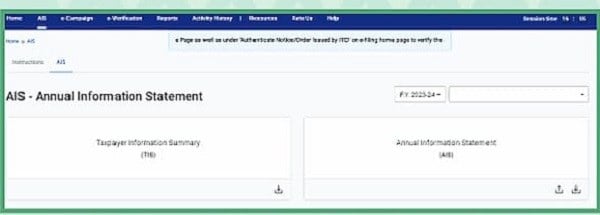
6. On AIS Homepage, access the functions available on AIS homepage as:
B) Steps for submission of feedback in AIS
User can submit the feedback on each Information displayed in AIS details. User can click and select one of the available options for submitting feedback by following the given steps:
Step 1: Navigate to AIS after following the steps mentioned above.
Step 2: Click on AIS tile and select the relevant Financial Year for which you would like to view the information under relevant tab such as TDS/TCS or SFT.
Step 3: Click on the information to view the transaction level details.
Step 4: Click on “Optional” mentioned in the Feedback column for relevant information.
Step 5: In the Add Feedback screen, choose the relevant feedback option and enter the feedback details (dependent on feedback type).
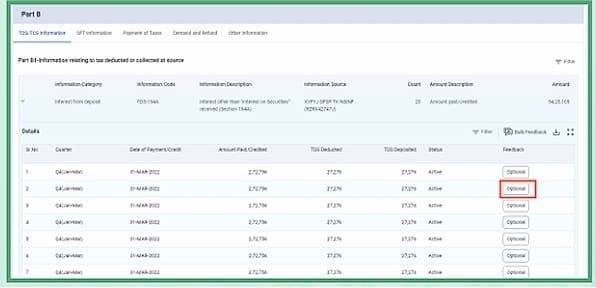
Step 5: In the Add Feedback screen, choose the relevant feedback option and enter the feedback details (dependent on feedback type).
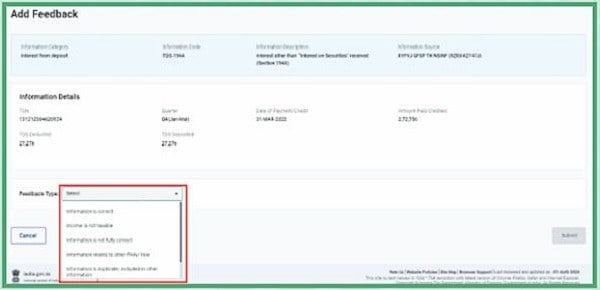
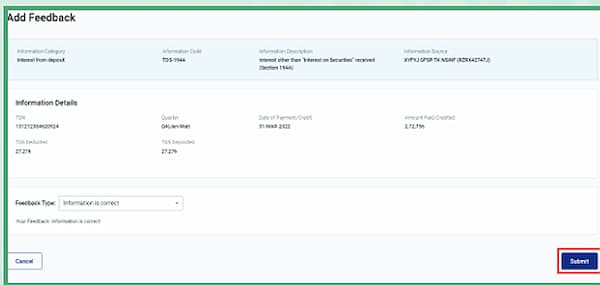
Step 6: Enter the necessary details and click on “Submit” to submit the feedback.
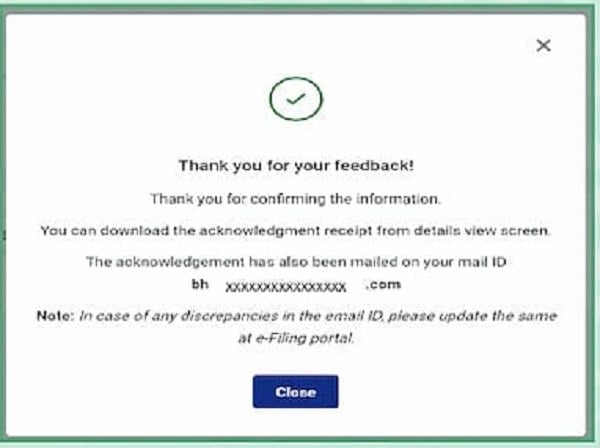
Step7: Success message will be shown for the successful submission of feedback. The acknowledgement receipt of the same can be downloaded from the download button “Acknowledgment Receipt’ available besides the active feedback in feedback history.
C) View Feedback History Feedback history will display the details of feedback(s), submitted on the specific information. User can navigate to this screen through:
Step1: Navigate to AlS after following the steps mentioned above.
Step2: Click on AIS tile and select the relevant Financial Year for which you would like to view the information under relevant tab such as TDS/TCS or SFT.
Step3: Click on the information to view the transaction level details.
Step4: Click on the feedback which was provided earlier to view the feedback history for that information.
Step5: Feedback history shall display all the feedback which were provided on that information. Additionally, information confirmation status from the source will also be displayed to the user for the feedback, which is shared with the source, if shared.
-
-
- Taxpayers will be able to view the following details for the information confirmation status: –
- Whether Feedback is Shared for Confirmation: – Yes/No
- Feedback Shared On: – The date on which feedback is shared with source.
- Source Responded On: – The date on which response is received from the source, if responded.
- Source Response:-Latest response provided by the source on the taxpayer’s feedback.
-
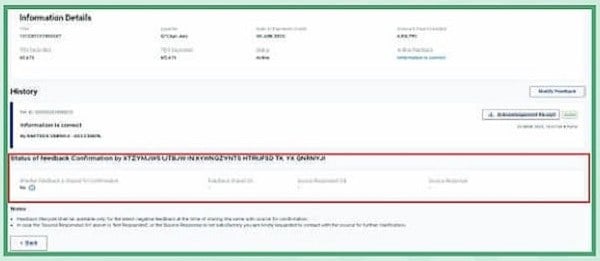
Figure 10- Information confirmation status
D) Accessing AIS offline through AlS Utility
1. Login to the e-filing portal by using the URL https://www.incometax.gov.in/
2. Click on “View Annual Information Statement (AIS)” under “e-File* » “Income Tax Returns” tab from the e-filing portal after successful login on e-filing portal OR alternatively, click on “AIS” Tab at the home page of e-filing portal.
3. You will be re-directed to AlS tab on Compliance Portal.
4. On AlS Homepage, navigate to Resources tab and download AIS utility under “Resources’ section. Taxpayers will have the option to download AIS Utility as per their operating system.
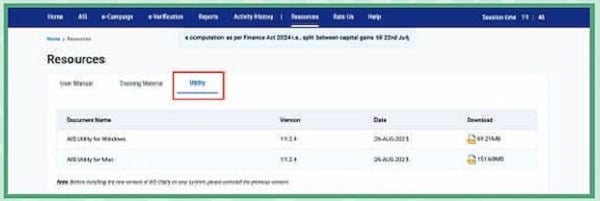
5. Extract the downloaded packet to make AIS Utility ready for use.
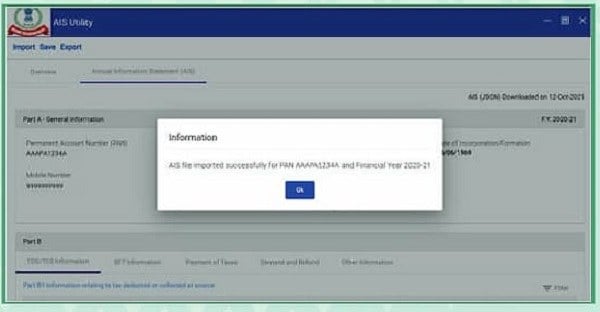
6. Import the AIS file on the utility by clicking on “Import” button by selecting the downloaded JSON file from the local system.
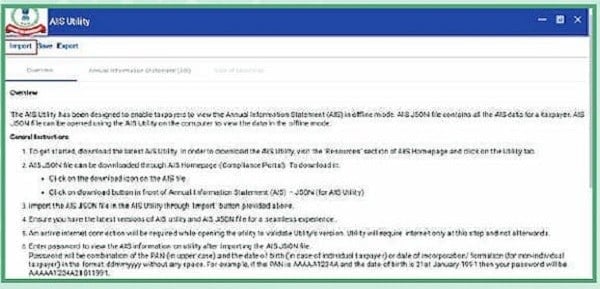
7. Enter the password in AIS Utility to import the AIS JSON file. Click on “Confirm”.
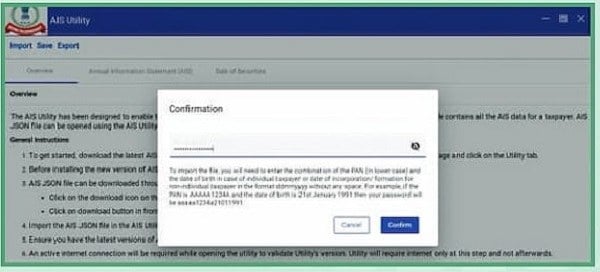
8. Upon successful authentication of AIS JSON file, a success message will be displayed & AIS can be viewed on Utility.
E) Accessing AIS through ‘AIS for taxpayer’ mobile app
1. Download the “AIS for Taxpayer” mobile app from Google Play/App Store.
2. Once the app is installed, then upon opening the app first time, onboarding screens will be visible from which user can scroll through by tapping “Next” or skip the screens by tapping “Skip”.
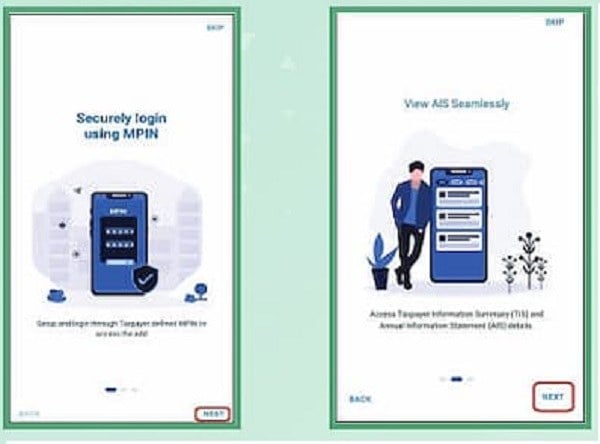
3. Tap on “Get Started” available on the last onboarding screen.

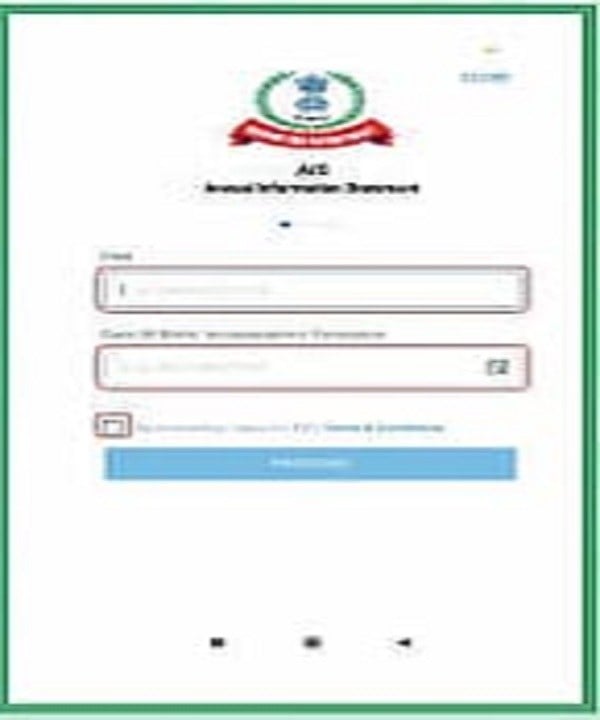
4. Enter PAN and Date of Birth/ Incorporation/Formation to get started with verification. Provide consent through the checkbox to the terms and conditions to initiate the verification process.
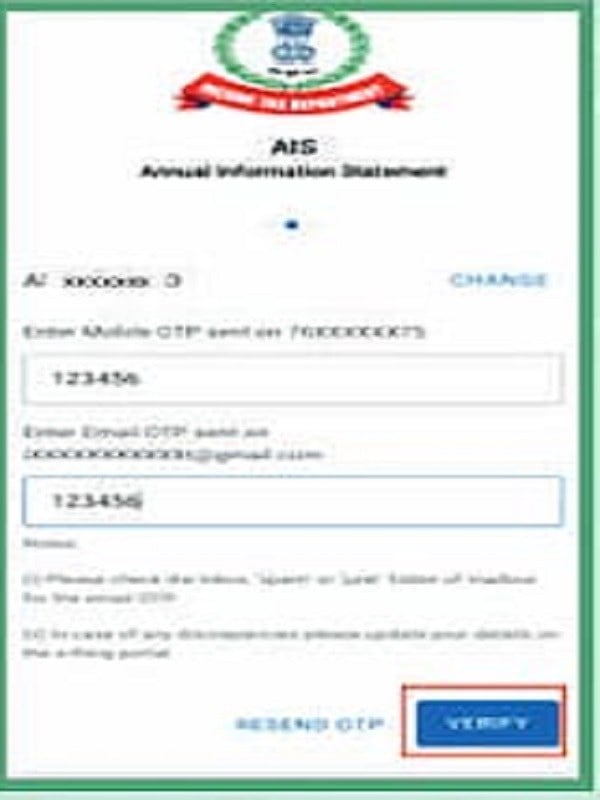
5. Separate OTPs will be shared on primary mobile number and primary email address as provided in primary details of e-filing profile. Enter the OTPs received and click “Verify”.
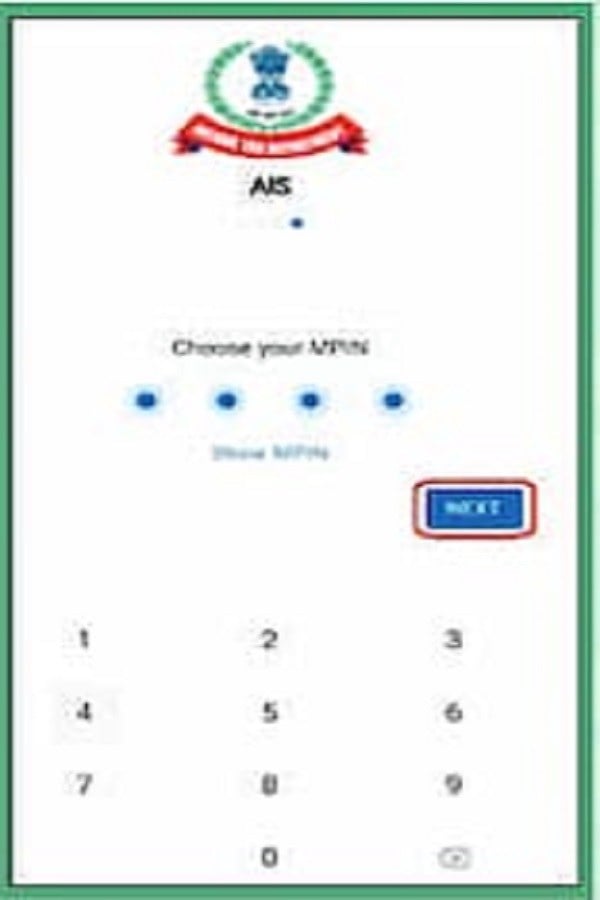
6. On entering both OTPs correctly, MPIN set up page will appear. Enter 4-digit MPIN of choice and click on “Next”.
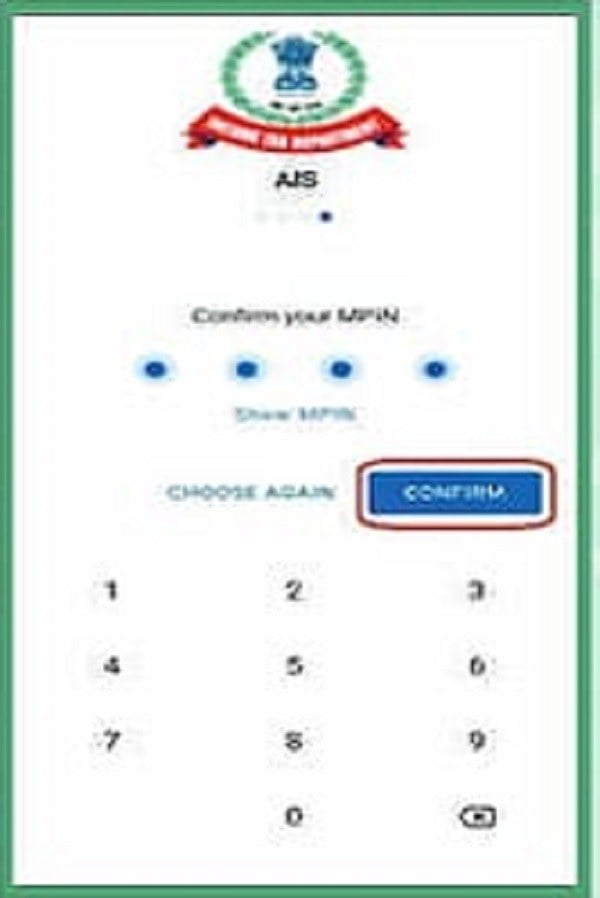
7. Post re-entering the MPIN, click on “Confirm” button to confirm the setup of MPIN.
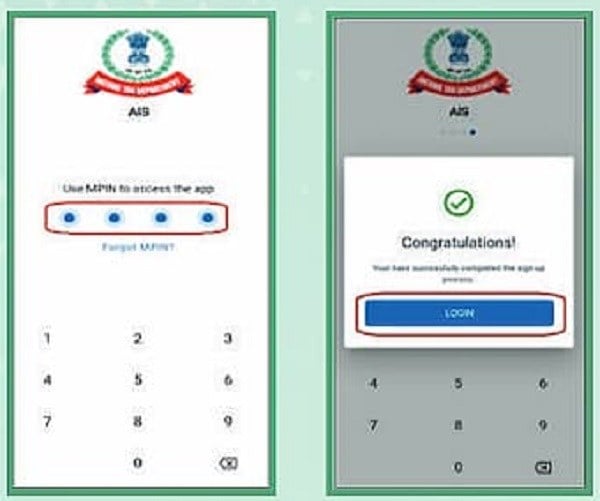
8. On successful setup of MPIN, user will be successfully registered, and user can login using the selected MPIN.
–
Prefilling of ITR’s:
AIS/TIS is a groundbreaking functionality that has provided complete disclosure of information being reported by various Information Sources like Reporting Entities, deductor, depositories etc. It has also given full control to the taxpayer in the form of feedback whereby the taxpayer can accept/deny/modify the information visible on the AIS/TIS. Information of various incomes reported is also being shared with CPC-ITR for pre-filling of Income Tax Returns.
After the introduction of AIS/TIS, information pertaining to major heads of income is being sent for pre-filling of Income Tax returns. Only processed information after applying data quality check rules, is being shared for pre-filling. Taxpayer feedback is considered while sharing the information for pre-filling. All these aspects have made the Tax Return submission process easy.
KEY TAKEAWAYS FOR THE TAXPAYERS
AIS – Your Financial Information at a Glance
1. One place for all your financial records AIS brings together information about your financial transactions reported by different sources, giving you a consolidated view.
2. Why accuracy matters The Income Tax Department uses AIS data for pre-filling your ITR, as well as for scrutiny and e-Verification. It is therefore important that the details in AIS truly reflect your actual transactions.
3. Incorrect information can have consequences If you notice any error or duplication in AIS, it is vital to provide your feedback. Ignoring mistakes can lead to unnecessary notices or proceedings.
4. Your feedback ensures correction at the source When you record feedback in AIS, it is shared with the reporting entities (banks, mutual funds, etc.) so that errors are corrected at the source level.
5. AIS is the Department’s view of you AIS is how the Department sees your financial profile. By reviewing it carefully and sharing timely feedback, you help ensure that action is taken only against actual tax evaders, not honest taxpayers affected by wrong or duplicate reporting.
Your active participation is key: Reviewing AIS, correcting errors through feedback, and filing a true and correct return helps protect you from unnecessary action while strengthening fair tax administration.