Summary: The Goods and Services Tax Appellate Tribunal (GSTAT) has provided a Standard Operating Procedure (SOP) for filing replies by respondents to appeals instituted against them. The procedure explains the electronic filing process through the GSTAT portal, enabling respondents to identify the relevant appeal, upload their reply documents, complete the prescribed submission steps and obtain confirmation of successful filing. The SOP applies where a respondent needs to submit a reply to an appeal and provides a structured process for doing so.
Under the procedure, the respondent must log in to the GSTAT portal and access the “File Reply” option available under the Respondent Corner. The respondent must select “Search by Case No.” and provide the required information, including the security code, case type, case number, location and case year. Once the relevant case appears in the search results, the respondent can select the upload option to proceed with filing the reply. The respondent must then select their name from the dropdown menu, following which the remaining details are automatically populated, and choose an available e-sign utility.
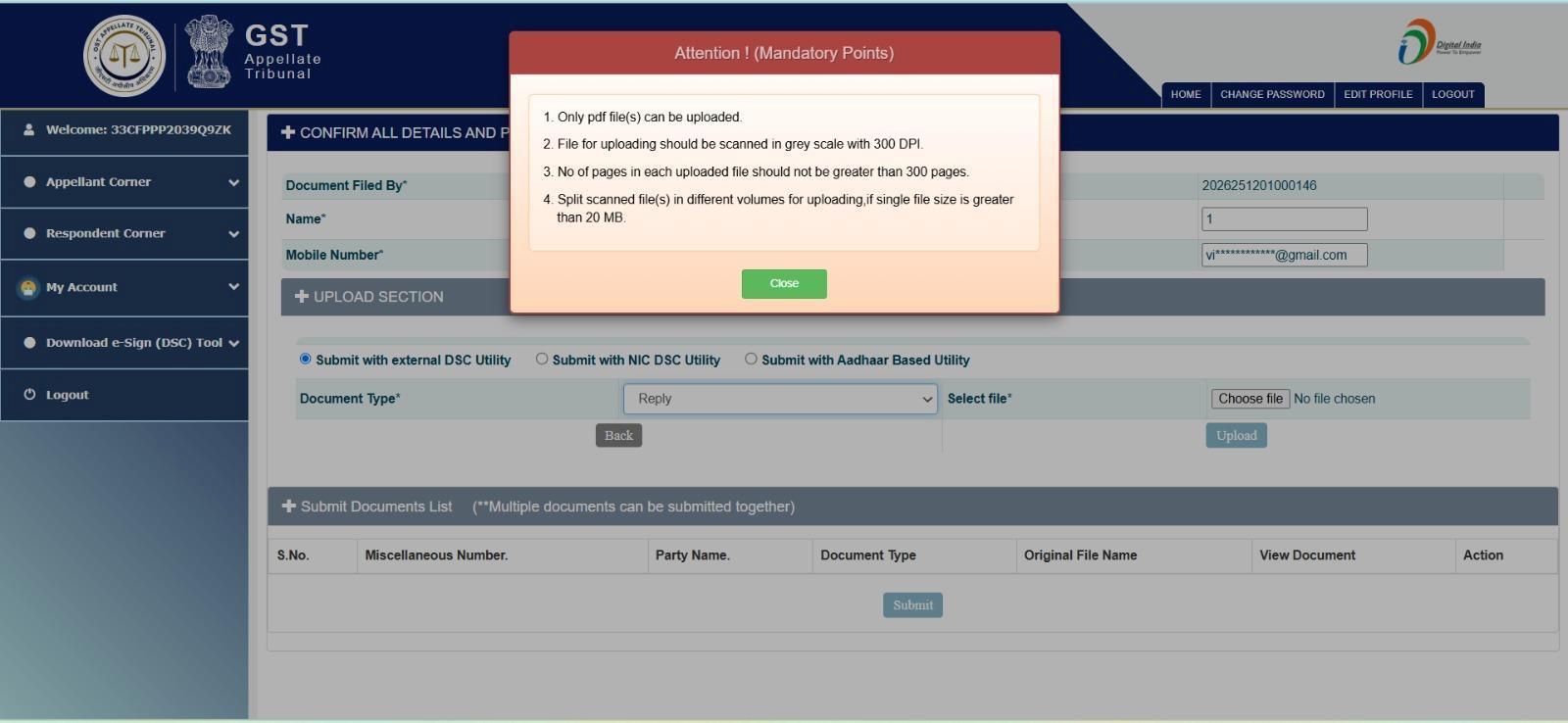
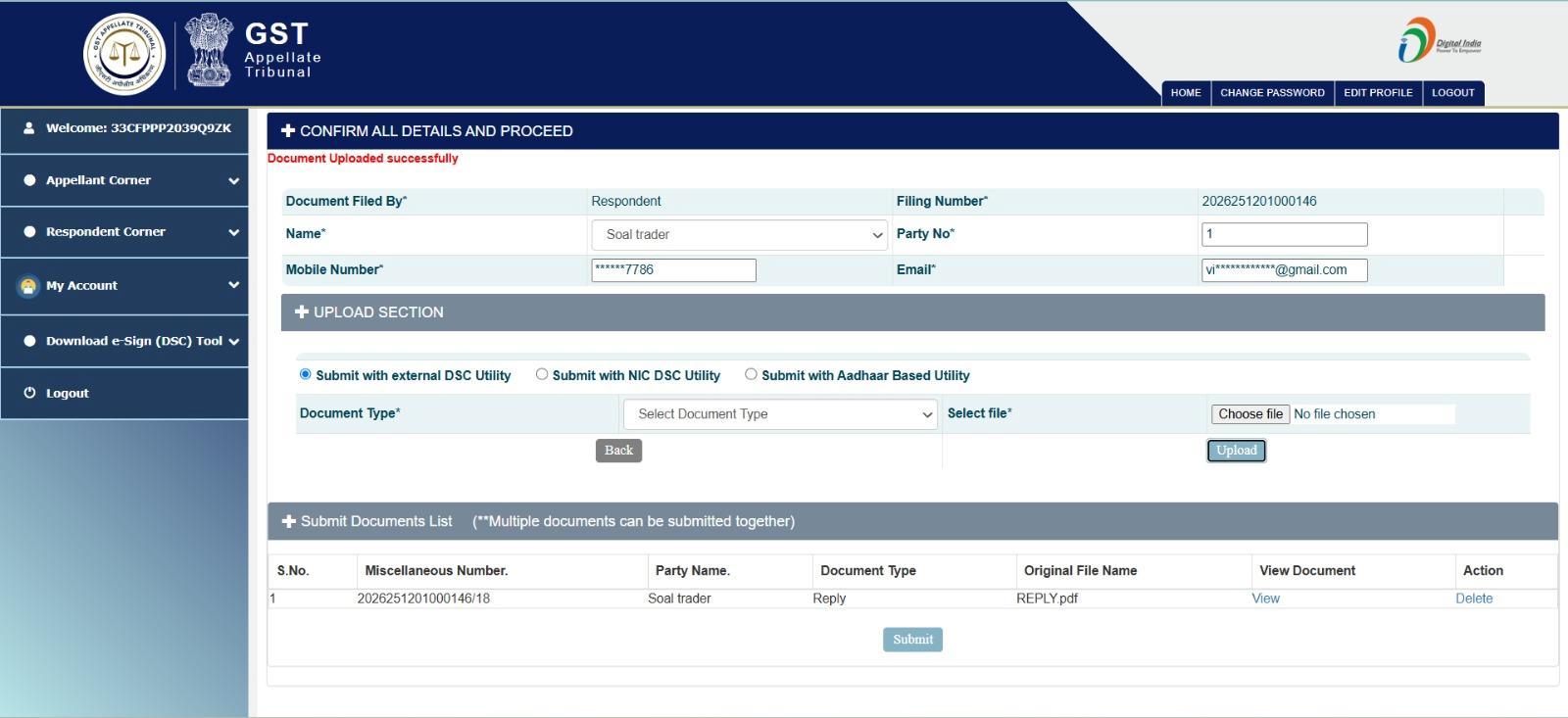
The SOP further provides that selecting the document type as “Reply” triggers a pop-up displaying the mandatory document-upload requirements. The respondent must select the appropriate file and upload it through the portal. Following successful upload, the document appears in the “Submit Document List” section with relevant particulars and options to view or delete it. The respondent can then submit the document. Upon successful submission, the portal displays a confirmation message and provides an option to print the receipt. The SOP thereby establishes the electronic workflow for respondents filing replies before GSTAT.
******
Reply Filing
Standard Operating Procedure
1. Purpose & Scope This document defines the standard operating procedure for respondents to file a reply, if needed, to an appeal filed against them.
2. Process
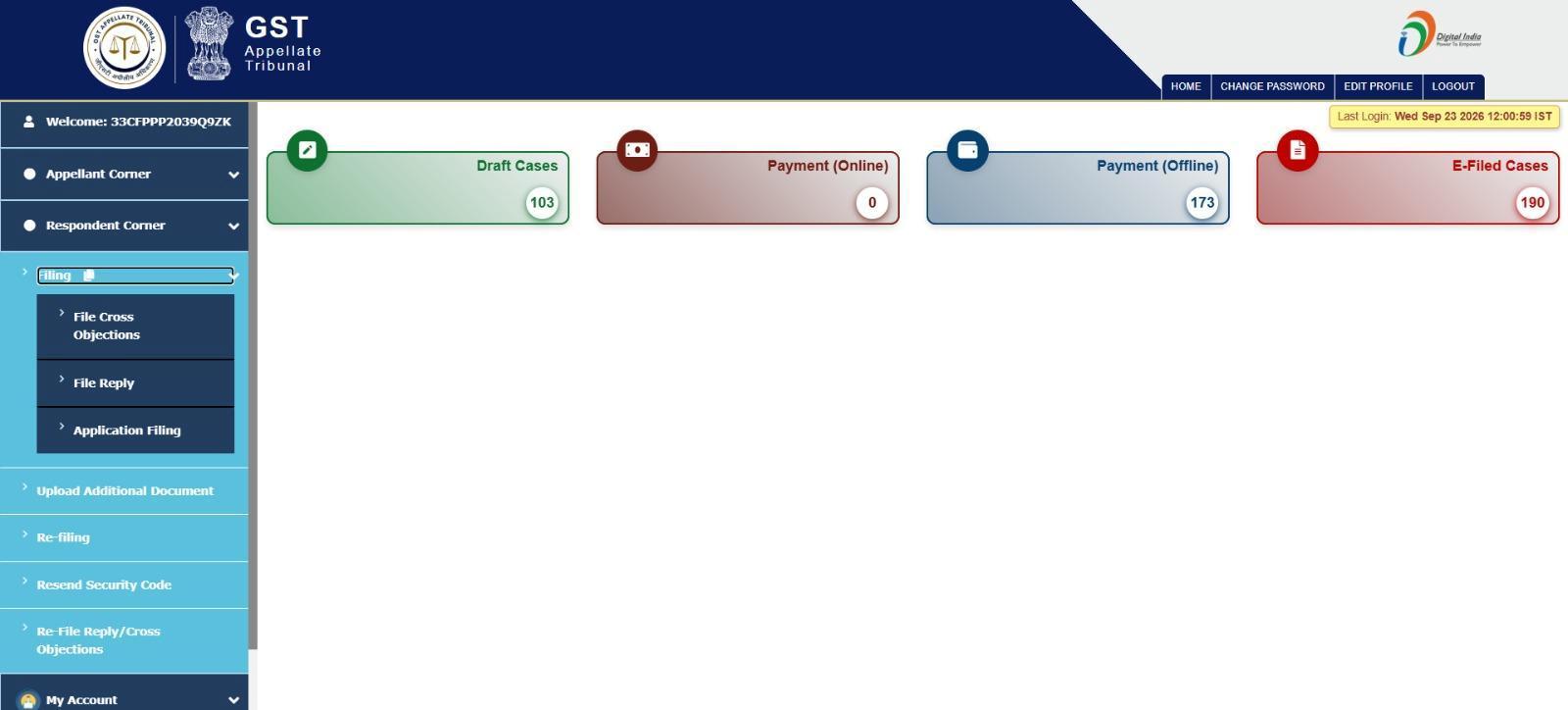
Step 1: Login to GSTAT portal, then go to the Respondent Corner → File Reply.
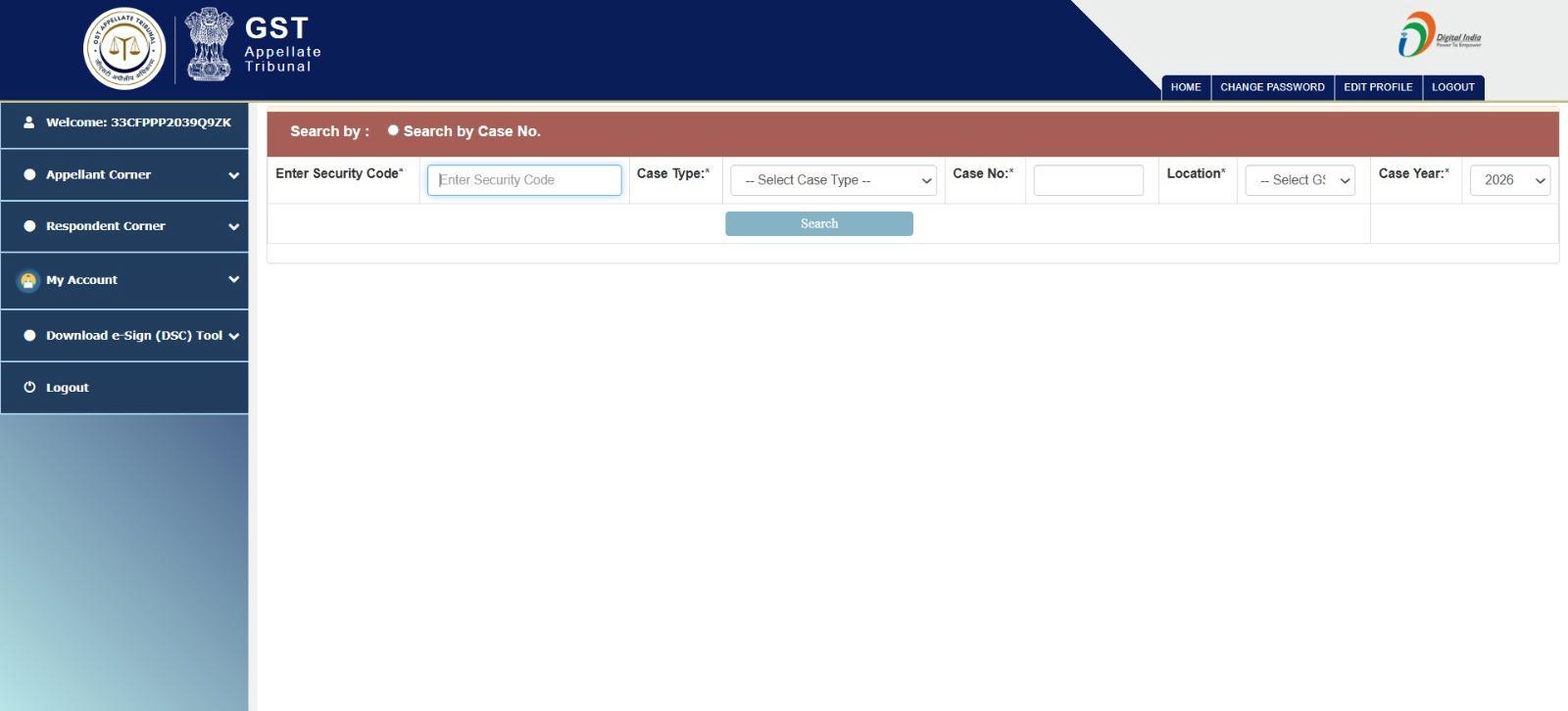
Step 2: Select “Search by Case No.” and enter the required details such as Security Code, Case Type, Case No., Location, Case Year.
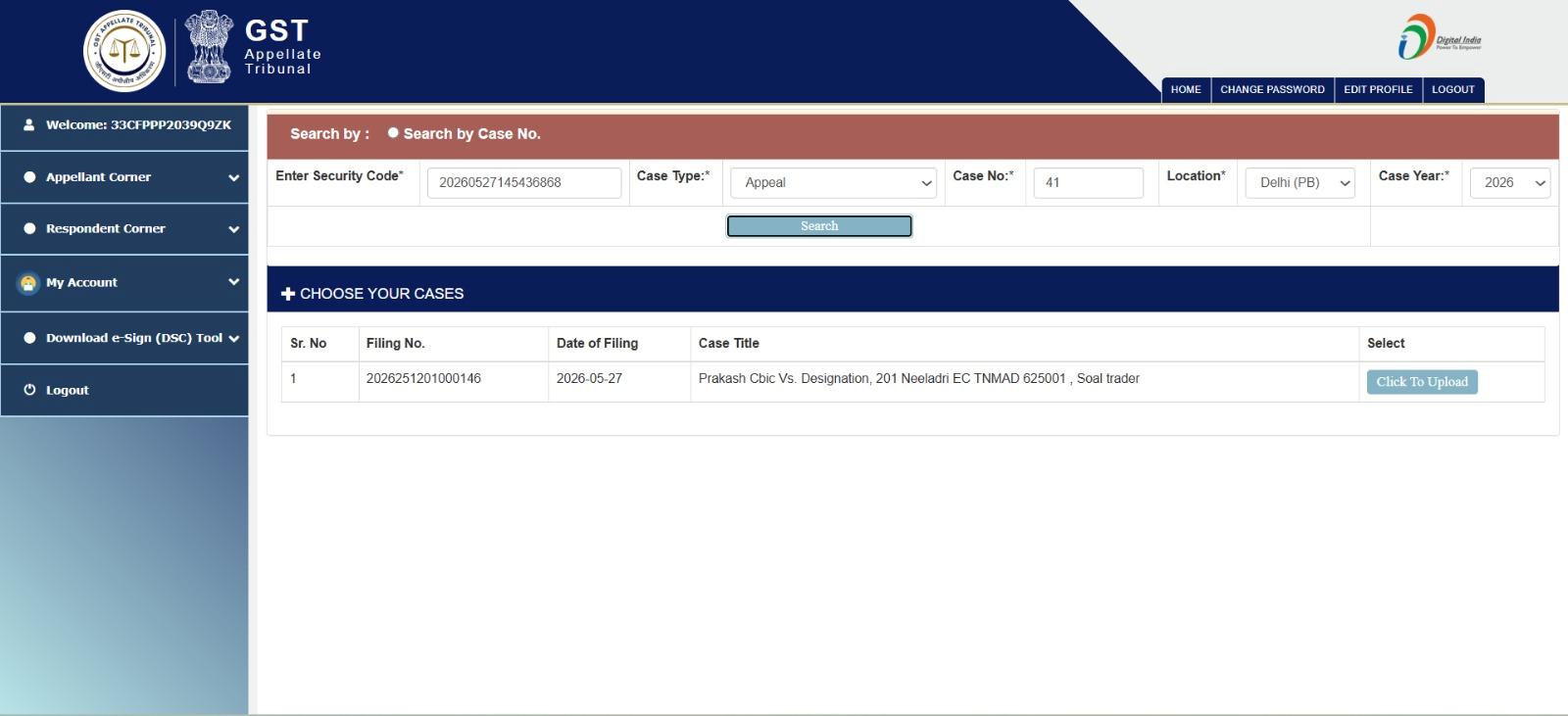
Step 3: After entering the required details, click on Search. The case will be displayed in the list below. Click on “Click to Upload” from the right most column. Step 4: A new window will open where the document must be uploaded.
Step 4:
A new window will open where the document must be uploaded.
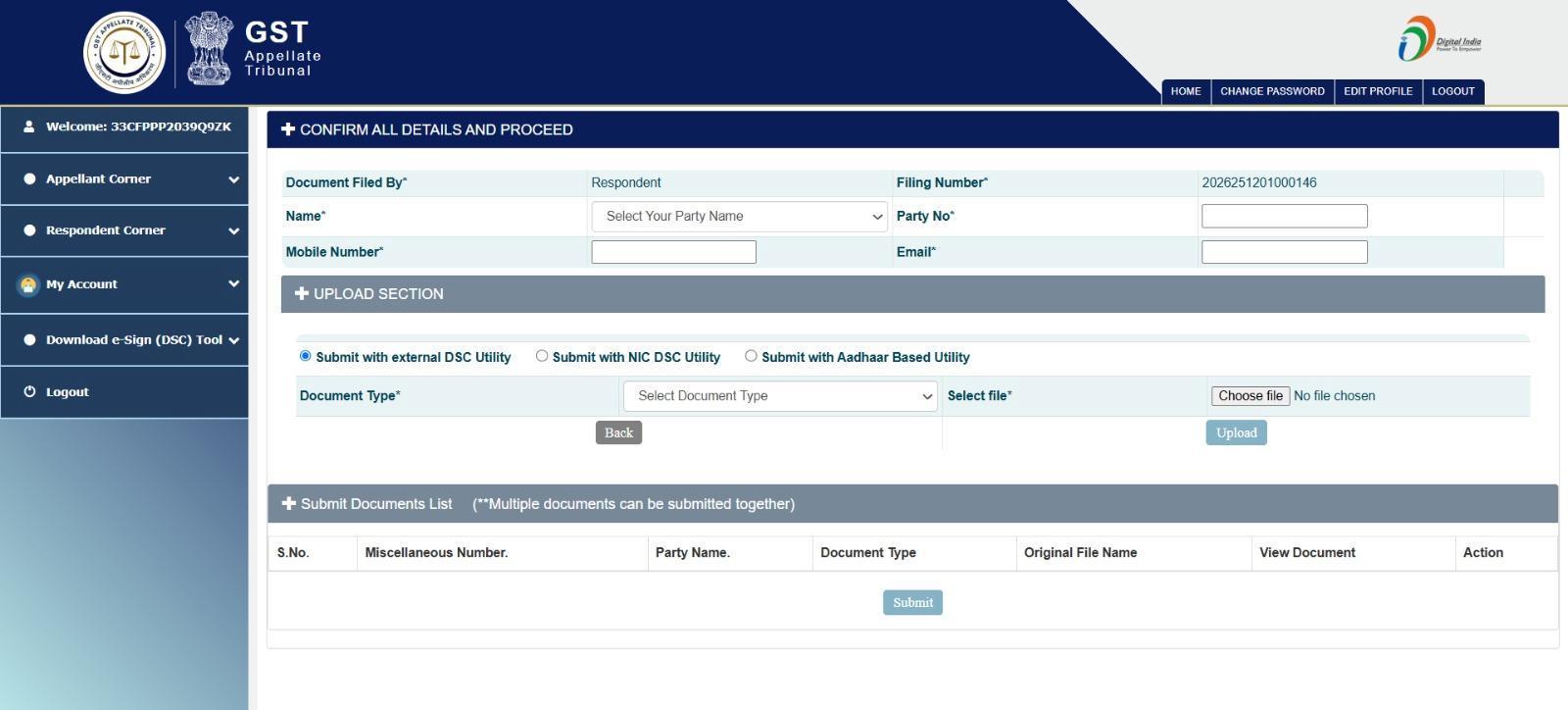
Step 5: The user will select his name from the dropdown. After that, all the other details will be auto populated. In the Upload Section, the user will select one of the E-Sign Utility.
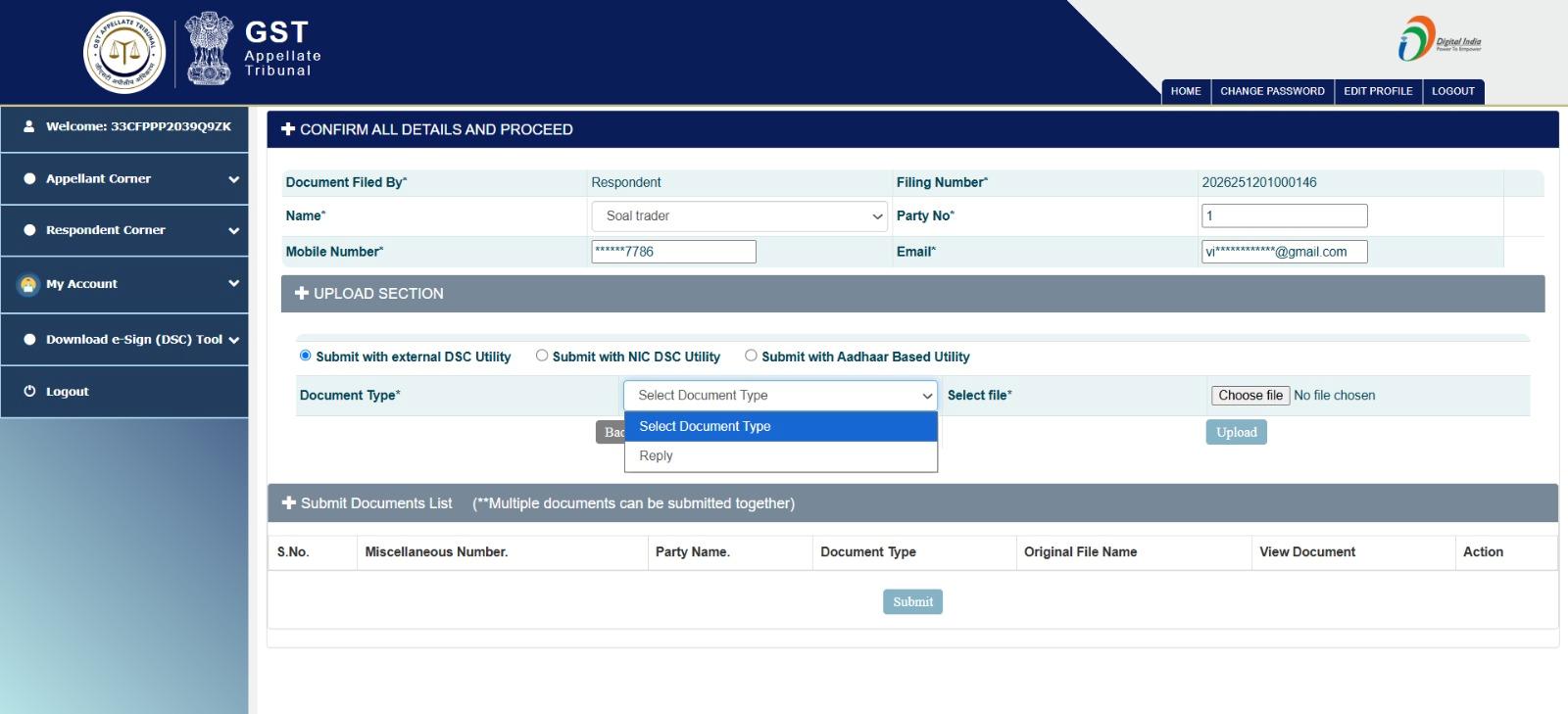
Once the user selects Document Type (Reply is this case), a pop-up will appear showing all the mandatory requirements to upload the document. After that the user will choose file from his system and Click on the Upload button.
Step 6: Once the document is uploaded, a message will appear confirming that the upload has been successfully uploaded. Also, the uploaded document will be displayed below in the “Submit Document List” section with other details such as Party Name, Document Type, etc. An option to view the document and delete the document will also be given in the same section. The User will now be able to submit the document by clicking on the Submit button
Step 7:
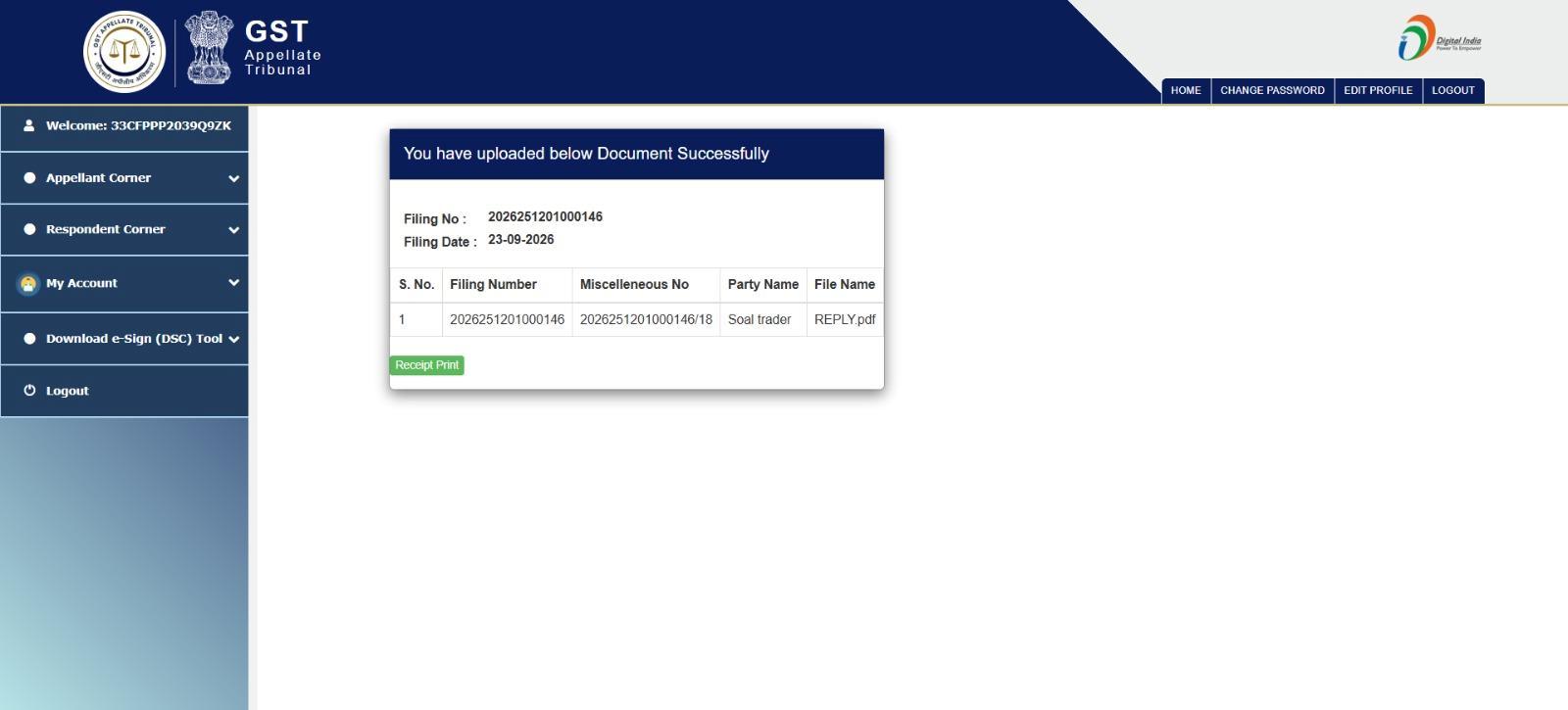
After clicking on submit, a message will be displayed confirming that your document has been submitted successfully with an option of Print Receipt.